How to Collect Every Guest's Wedding Photos — and Show Them Live at Your Reception
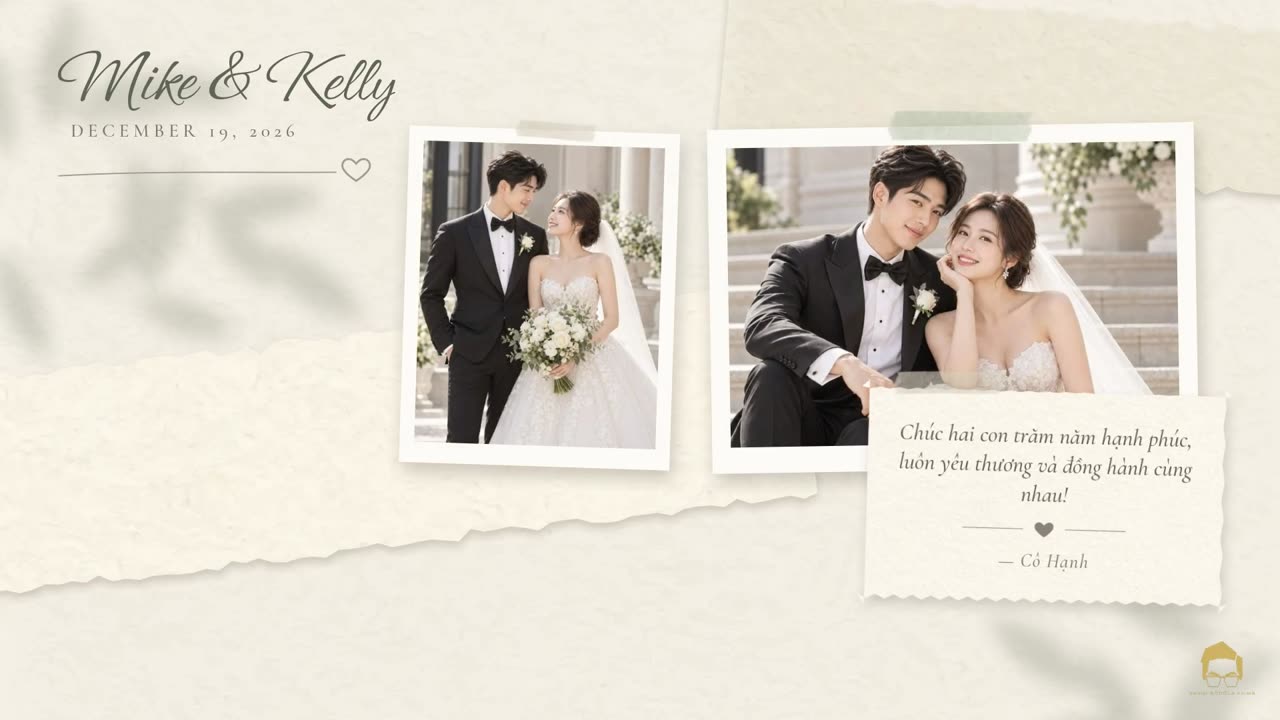
Your photographer captures the day. Your guests capture everything else: the cousins on the dance floor, the grandparents laughing at table 6, the moment your best friend cried during the toasts. Those photos usually stay on a hundred different phones. Here's a simple way to get them all — and to put them on the big screen while the party is still going.
Why guest photos get lost
Most couples ask guests to "share their photos" and hope for the best. The usual tools each leave a gap:
- A wedding hashtag only finds posts from public accounts, and most guests keep their Instagram private. Stories disappear after a day. (We go deeper in hashtag vs. QR photo sharing.)
- A shared album needs everyone on the same platform — iPhone and Android guests can't join an iCloud album the same way.
- "Text them to us" works for five people, not 150, and phone messages shrink the photos.
What works is the thing guests already know how to do: point the camera at a QR code.
The setup: a QR code on every table
With a QR photo box, each table gets a small card with your names and a QR code. A guest scans it with their phone camera, picks photos from their camera roll, and taps send. No app to install, no account, no password. They can add their name and a short wish if they like.

A few details make a real difference:
- Full quality. Photos come straight from the guest's camera roll, so you get the original, not a 1080-pixel social media copy.
- Privacy. Only the two of you can see them, and location data is stripped from every photo.
- Easy to keep. You download everything at once as a ZIP, named by who sent each photo.
Showing them live on the reception screen
This is the part guests love. Most receptions already have a screen — a TV for the slideshow, or the DJ's projector. Open the slideshow link in Chrome on the DJ's laptop, tap full screen, and new photos start appearing seconds after guests send them, laid out like a scrapbook with their wishes pinned on.
When guests see their own photo on the screen, they send more. It turns photo sharing into part of the party instead of a chore for later.
Do you need to approve every photo?
No — and you shouldn't try. You'll be busy all night. Only your guests can send photos (they need the QR code), so the simplest approach is to let photos play right away and hand a moderator link to a bridesmaid or your coordinator. If a photo isn't one you'd want on the screen, they hide it with one tap on their phone. It disappears from the screen but stays in your collection.
If you'd really rather approve first, you can switch that on — just know it means someone has to watch the queue during the reception.
What the DJ needs
- A laptop connected to the TV or projector by HDMI — or AirPlay / Chromecast from a phone or tablet.
- Internet: the venue's Wi-Fi or a phone hotspot. The slideshow uses screen-size images, so a whole evening is a modest amount of data, and if the signal drops it keeps playing the photos it already has.
- For a TV mounted vertically, there's a vertical layout and a rotate option.
Send the link to your DJ a week before and ask them to open it once at the venue — the same advice you'd give for any slideshow.
After the wedding
Guests keep sending photos for days, from the after-party and the drive home. Two things to plan for:
- Download your photos. Photo boxes are meant for collecting, not long-term storage — download the ZIP within the first two weeks. (With Lumière, photos are kept for 14 days after the wedding, and you get reminder emails before anything is deleted.)
- Make the slideshow video. One tap turns your guests' photos and wishes into a video set to music — landscape for the TV, vertical for Reels or TikTok. It's the thing couples actually post.
A quick checklist
- Turn on the photo box and print one table card per table (plus one at the bar).
- Ask your MC to mention it once, early in the evening.
- Send the slideshow link to your DJ and the moderator link to one trusted friend.
- Download the ZIP within two weeks, then make your slideshow video.
Lumière includes the QR photo box and the live reception slideshow in its Signature plan, and they're free for couples who book Kevin Socola Films for their wedding.
Keep reading
 Wedding Hashtag vs. QR Photo Sharing: Why Many Guest Photos Never Reach the CoupleA wedding hashtag misses private accounts, Stories and full-quality files. What it can and can't do — and how to pair it with QR sharing.
 Online RSVPs for a Tea Ceremony and a Reception: Inviting Each Guest to the Right EventsRunning RSVPs for a tea ceremony and a reception: private guest links, seat limits, invite-only events and one gentle reminder.
 Bilingual Wedding Invitation Wording (English & Vietnamese): Examples You Can CopyEnglish–Vietnamese wedding invitation wording to copy: naming both families, addressing elders (Ông Bà, Cô Chú) and keeping both languages graceful.